



05 May 2026
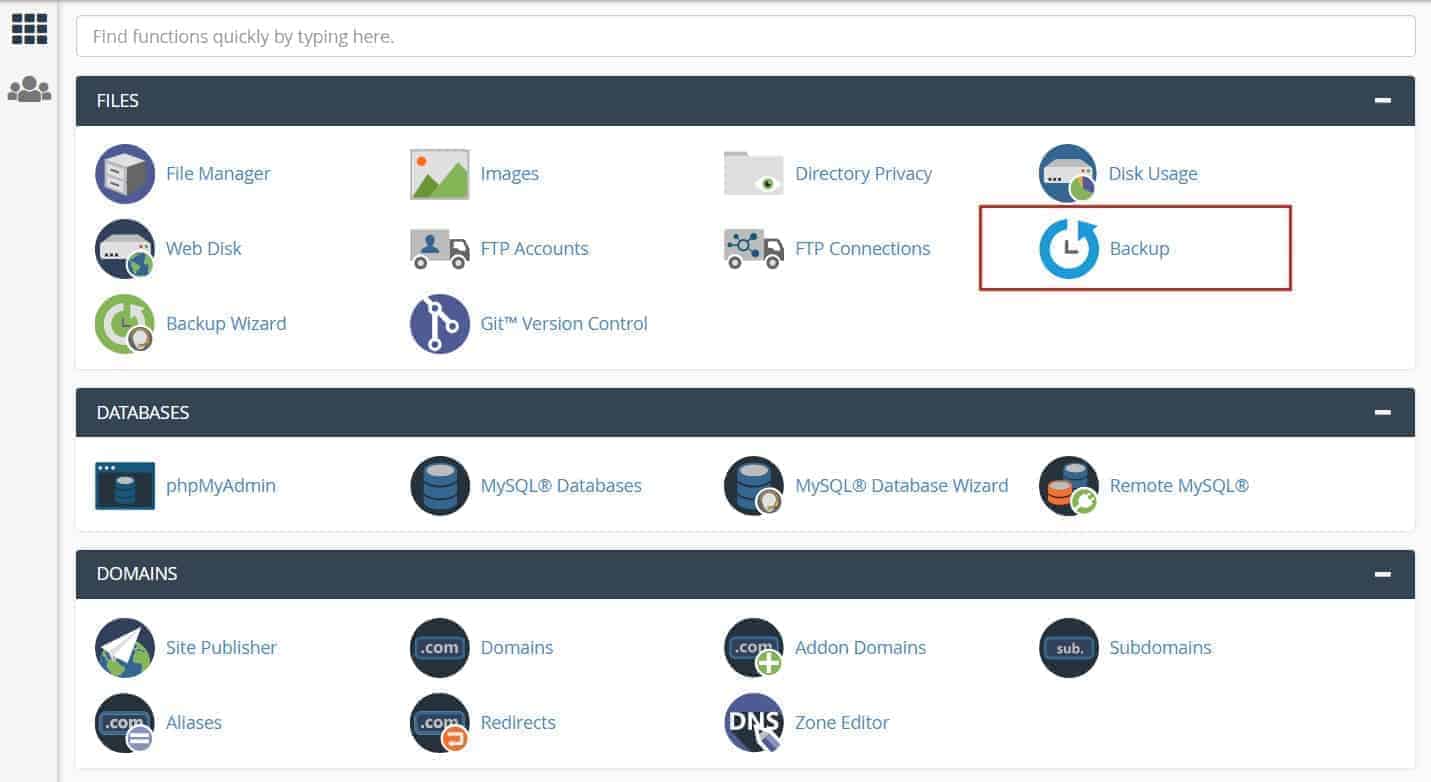
This is a articale all about cpanel backup from command line. Let's start...
To create a backup of a cPanel account from the command line, you can use the /usr/local/cpanel/scripts/pkgacct script. This script is included with cPanel and can be used to create a full backup of an account, including all files, databases, and email.
Here is an example of how you can use the pkgacct script to create a backup of an account:
/usr/local/cpanel/scripts/pkgacct username
Replace "username" with the actual username of the account you want to create a backup for.
This will create a tar.gz file in the current directory that contains the full backup of the account. You can specify a different location for the backup file by using the --dest option, like this:
/usr/local/cpanel/scripts/pkgacct username --dest /path/to/backup/directory
How to take cpanel backup without home directory
You can also use the --skiphomedir option to exclude the home directory from the backup, like this:
/usr/local/cpanel/scripts/pkgacct username --skiphomedir
How to create cPanel backup without mail.
To create a backup of a cPanel account from the command line without including the email, you can use the /usr/local/cpanel/scripts/pkgacct script with the --skipmail option. This script is included with cPanel and can be used to create a full backup of an account, excluding the email.
Here is an example of how you can use the pkgacct script to create a backup of an account without the email:
/usr/local/cpanel/scripts/pkgacct username --skipmail
Replace "username" with the actual username of the account you want to create a backup for.
This will create a tar.gz file in the current directory that contains the full backup of the account, excluding the email. You can specify a different location for the backup file by using the --dest option, like this:
/usr/local/cpanel/scripts/pkgacct username --skipmail --dest /path/to/backup/directory
How to take all cpanel account backup using commandline
To create a backup of all cPanel accounts on a server from the command line, you can use the /scripts/pkgacct script in a loop. This script is included with cPanel and can be used to create a full backup of an account, including all files, databases, and email.
Here is an example of how you can use the pkgacct script to create a backup of all accounts on a server:
for i in $(whmapi1 listaccts | grep user | cut -d: -f2); do
  /scripts/pkgacct $i
done
This will create a tar.gz file in the current directory for each account on the server, containing the full backup of the account. You can specify a different location for the backup files by using the --dest option in the loop, like this:
for i in $(whmapi1 listaccts | grep user | cut -d: -f2); do
  /scripts/pkgacct $i --dest /path/to/backup/directory
done
To run a backup manually, log in to the command line via SSH as the root user and run the following command:
/usr/local/cpanel/bin/backup
Restoring a cPanel Backup via SSH
To restore a previously created backup of your cPanel account, just follow these steps:
- First, if you haven’t already, log in to SSH as the Root user.
- Navigate to the directory containing your backup file. *Note: In order to restore your data, you must be in the correct directory.
- Next, to restore your cPanel backup, enter the following command into the command line:
/scripts/restorepkg usernameAnd there you have it!


Create, collaborate, and turn your ideas into incredible products with the definitive platform for digital design.

12 December 2025
Boost your 2026 rankings with our ultimate SEO guide. Learn how to optimize for AI agents using NVMe SSDs, LiteSpeed Cac
Contact us at